

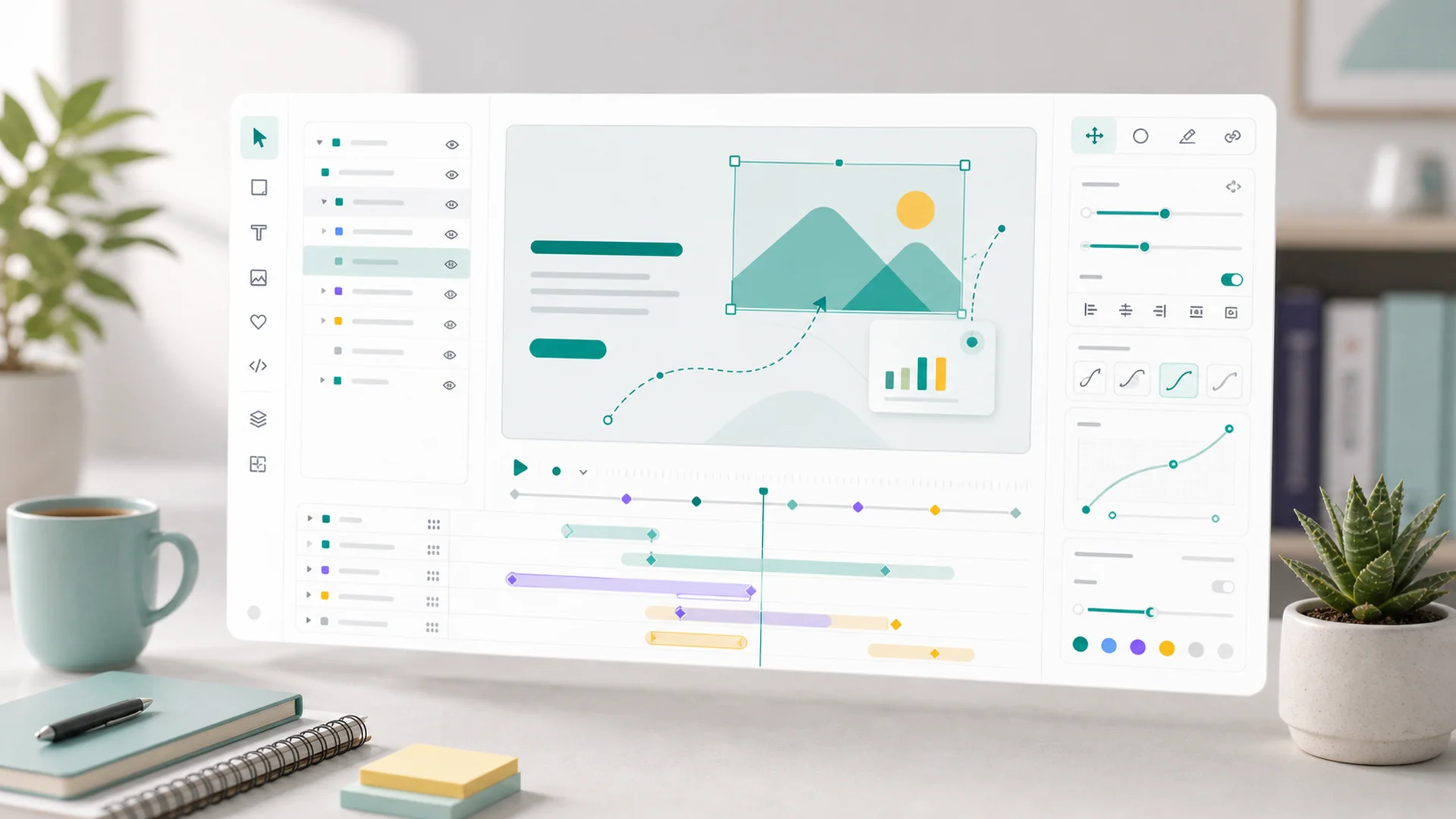
Quick answer: The visual motion editor is a new surface in your Faster workspace for reviewing and adjusting page animation visually — timing, emphasis, entrances, and interactive canvas visuals — without touching animation code. Describe the motion you want and AI drafts it; the editor is where you tweak the pacing, check it against the live page, preview desktop and mobile side by side, and save reusable motion moments your whole site can share.
Motion has always been the part of a website small teams rent, not own. A tasteful scroll reveal or an animated product moment meant hiring a specialist, waiting on revisions for every timing tweak, and never quite being able to maintain it yourself afterward.
Today that changes. The visual motion editor is live in every Faster workspace — and with it, motion becomes something you describe, review, and adjust the way you already edit a page.
What it is
The visual editor for page motion gives you a page-focused way to change timing, motion properties, and interactive moments — with the actual page in view while you do it. Slow an entrance down, tighten a stagger, change what triggers on scroll, and watch the result in place rather than imagining it from a settings panel.
Crucially, motion changes save as part of the same page review workflow as everything else in your workspace. There's no separate animation pipeline to manage — a timing tweak is a draft change like any other, reviewed and published with the page it belongs to.
Describe it first, tweak it visually
The fastest way to start isn't dragging keyframes — it's a sentence. Tell the AI what the page is for and where attention should go, and it will suggest motion ideas and draft them for visual review. "Make the three pricing cards arrive one after another, calmly, when they scroll into view" is a complete, working brief.
The editor is where your judgment comes in: the draft is the starting point, and the visual surface is where you adjust the pacing until it feels like your brand. That division of labor — AI does the authoring, you do the directing — is the same one we recommend for every kind of AI-drafted work: let the draft be cheap, and put your taste at the decision point.
Canvas visuals, when an image isn't enough
Some moments need more than a static image but less than a video shoot — an animated explainer, a launch visual, a product moment that responds to the visitor. That's what canvas visuals are for: rich, animated assets you create from a template or a prompt and adjust like any other piece of content.
Canvas motion gets the same visual treatment as page motion. Editing it visually means you judge what actually matters for business review — framing, pacing, focus, and whether the visual supports the page around it — instead of squinting at parameters. When a canvas visual works, publish it once and reuse it across pages and campaigns.
Preview on desktop and mobile before anyone else sees it
Motion has a particular failure mode: it feels polished on the screen where it was made and broken everywhere else. Text that overlaps mid-animation on a narrow viewport, a cropped canvas visual, a parallax effect that turns nauseating on a phone — none of it visible from the desktop where you built it.
So the editor builds the check in: preview motion on desktop and mobile before publishing, catch the overlap and the cropping, and decide deliberately when mobile should get a simpler version of the same moment. Simplifying motion for small screens isn't a compromise — it's usually the right design.
Reusable motion moments keep your site coherent
One-off animations drift: every page animates a little differently, and the site stops feeling like one thing. Reusable motion moments fix the drift — turn a pattern your team repeats (reveal sections, product highlights, counters, launch visuals) into a saved moment, and apply the same style across related pages.
Reuse doesn't mean uniformity — not every section should animate the same way, and the workflow is explicit about that. It means the patterns you do repeat stay consistent without anyone re-creating them by hand.
Start with restraint
A word of direction before you open it: motion should make a page easier to understand, not harder to read. The adding motion guide leads with that rule, and our earlier deep-dive on website motion that doesn't annoy covers the taste side in full. The short version:
- Animate to direct attention — toward the offer, the proof, the next step — never to decorate.
- Leave critical text alone until you've checked readability with the motion running.
- One memorable moment per page beats five competing ones.
A good first project: pick your highest-traffic page — for many businesses that's a product page or the homepage — and give its key section one calm, well-timed entrance. Preview both screen sizes, publish, and build from there.
Key takeaways
- The visual motion editor is live in every Faster workspace: adjust timing, emphasis, and interactive moments with the page in view, no animation code.
- Describe the motion you want and AI drafts it: the editor is where you direct the pacing and feel.
- Canvas visuals cover the ground between a static image and a video shoot: and publish as reusable assets.
- Desktop and mobile preview is built into the workflow: simplify motion on small screens on purpose.
- Reuse the moments: reusable motion moments keep repeated patterns consistent across the whole site.
- Motion's job is to make pages easier to understand: start with one calm moment on your highest-traffic page.
Frequently asked questions
Do I need any animation or design experience to use it?
No. Describe what you want in plain language and review the draft visually. The skills that matter are the ones you already have — knowing your brand's tone and judging whether something feels right.
Will motion slow my website down?
Motion built through the workspace is designed for customer-facing performance, and the AI workflow is explicitly tuned toward restrained, reviewable motion. The bigger risk is overuse, not the technology — which is why we recommend starting with one moment per page.
What's the difference between page motion and a canvas visual?
Page motion animates the elements already on your page — sections, cards, headings — as they enter or respond to scroll. A canvas visual is a self-contained animated asset, like an explainer or launch graphic, that you place on a page and can reuse anywhere.
Can I reuse an animation across several pages?
Yes — that's what reusable motion moments are for. Save a pattern once and apply it to related pages, so your reveals and highlights stay consistent without rebuilding them each time.
What happens to motion when visitors are on slow connections or prefer reduced motion?
Preview and review are part of the publish workflow precisely so you can check how pages behave beyond the ideal case — and simplifying or removing motion for a given context is a first-class choice in the editor, not a hack.
The visual motion editor is available now in your workspace — open a page, ask for a motion idea, and direct the result until it feels like you. Start with the visual editor guide if you want the tour first.