

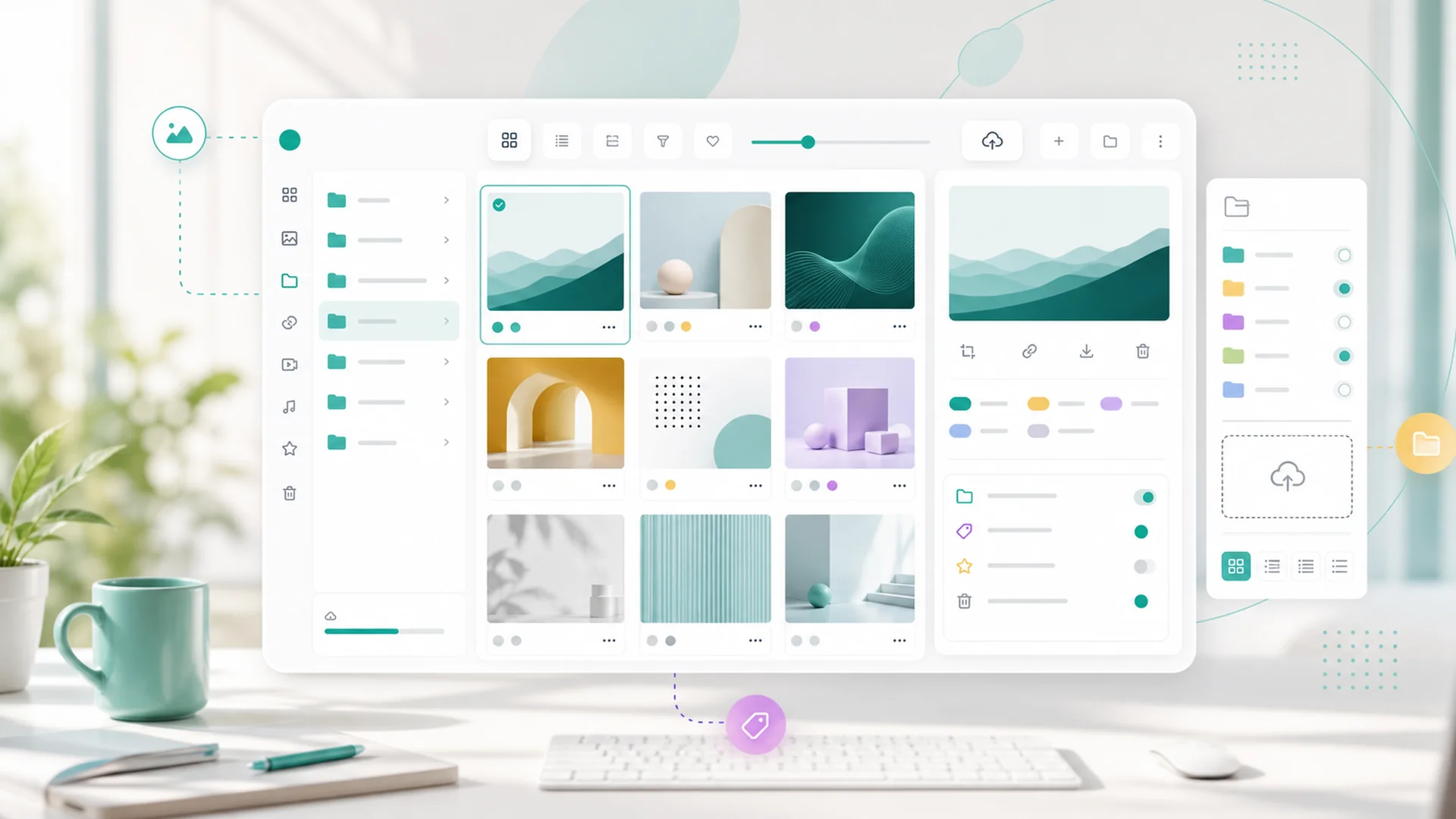
Quick answer: The Media Library is now the single home for every asset in your Faster workspace — images, videos, PDFs, audio, and documents — shared by your pages, posts, emails, and AI drafts. Organize with folders for ownership, tags for what things are, and collections for what they're for; reuse approved assets instead of re-uploading; and use first-class placeholders so work keeps moving while final media is still being made.
Every business has the same media problem, and it doesn't look like a media problem. It looks like the logo that's slightly different on the website and the invoices. The product photo that's current on one page and two versions old on another. The "final-FINAL-v3" folder on someone's desktop, and the upload box in every tool quietly building five disconnected copies of your brand.
The fix is structural, and it ships today: one library, behind everything.
One home, every surface
The Media Library is the shared place to upload and reuse images, videos, PDFs, audio, and documents — and "shared" is the operative word. The same library sits behind your website pages, your social posts, your emails, and your AI-assisted drafts. Upload an asset once and every tool in the workspace can place it; there is no longer a separate pile of files per surface.
That single fact quietly fixes the duplicates problem at the root: tools that share a library don't accumulate diverging copies, because there's nothing to diverge.
Folders, tags, collections — three questions, three tools
Organization fails when one mechanism is asked to answer every question. The library gives you three, each with one job:
Ownership and housekeeping: Brand, Products, Team, Customer Photos. An asset lives in exactly one folder, so there's always one canonical place to look — and one place to clean up.
Attributes that cut across folders: logo, headshot, before-after, seasonal, dark-background. An asset can carry many tags, so "every dark-background logo" is one filter away regardless of where things live.
Purpose-built sets that gather assets for a job: the spring launch, the new location opening, this month's social batch. A collection borrows assets without moving them — the campaign sees its set; the library keeps its order.
The practical payoff: when you're batching a month of social posts, the collection for that batch is already assembled — no desktop archaeology at drafting time.
Reuse is the feature
The library's deepest habit change is the smallest one: choose before you upload. When a suitable asset already exists, select it from the library instead of uploading a near-duplicate — that's what keeps your brand consistent across every page and post, and what keeps the library from becoming the mess it replaced.
Reuse also gives you a power move: replace once, update everywhere. When the product photo finally gets reshot or the logo gets refreshed, replacing the asset in the library updates every surface that placed it. The "two versions old on page six" problem stops being a thing you audit and becomes a thing that can't happen.
Placeholders are part of the workflow, not a hack
Real work doesn't wait for final photography — and now it doesn't have to pretend to. Placeholder media is a first-class citizen: drop a clearly-marked temporary image or video into a page draft, document what the final asset should show, and let structure and copy review proceed while the shoot is still being scheduled.
The discipline that makes it safe is built in: placeholders are marked so they're visible in review and don't ship by accident, and each one carries its replacement note — what the final image needs to show, at what crop, for which section. (We run our own content production this way; this post's hero image was a placeholder before it was a picture.)
Your media, in the AI's hands
Because the library is shared, the AI can use it the way your team does. Mention an asset when chatting — the same way you'd attach any context — and the draft comes back with your actual product photo placed, not a generic suggestion. Pick the media first and AI-assisted post drafts build around it; platform previews then show the real crop on each channel before anything publishes.
Approved assets plus AI drafting is the combination that scales: the words can be generated fresh every time, but the brand — the faces, the logo, the real work — comes from one governed library.
Getting your library in order (one afternoon)
- Upload the current, approved version of your core brand set — logos in their variants, team headshots, the ten product or service photos you actually use.
- Name files like you'll search for them — "logo-horizontal-dark-bg" beats "IMG_4382-edited(1)". Future-you searches by words.
- Folder by ownership, tag by attribute, and make one collection for whatever you're launching next.
- From now on: library first, upload second. The habit is the system.
Key takeaways
- One library now sits behind pages, posts, emails, and AI drafts: upload once, place anywhere.
- Three questions, three tools: folders answer "where does it live," tags answer "what is it," collections answer "what is it for."
- Choose from the library before uploading: reuse is what keeps the brand consistent and the library clean.
- Replace an asset once and every placement updates: outdated-screenshot audits are over.
- Placeholders are first-class: clearly marked, documented, and review-safe until final media lands.
- On-brand by construction: AI drafts built from your approved assets keep generated content on-brand.
Frequently asked questions
What file types does the Media Library hold?
Images, videos, PDFs, audio files, and documents — if your pages, posts, or emails can use it, the library can hold it. That includes the downloadables you attach to courses and member areas.
If I replace an asset, does it really change everywhere it's used?
Yes — that's the point of placing from the library rather than uploading copies. Replacing the library asset updates its placements. If you want an old version preserved somewhere specific, that's the case for uploading the new version as a separate asset instead.
How is a collection different from a folder?
A folder is the asset's one permanent home; a collection is a temporary cast list for a job. An asset lives in one folder but can appear in any number of collections — the launch, the sale, the social batch — without ever moving.
What should I do with the duplicates I've already accumulated?
Don't archaeology the whole past — establish the approved current set, name it well, and let old duplicates age out unused. The library fixes forward; spending a week curating history usually isn't worth it.
Can my team see which placeholders still need final media?
Yes — placeholders are marked and carry their replacement notes, so the review pass before publishing surfaces every outstanding one. A page can move through copy and structure review with placeholders in place, but it shouldn't ship with them.
The Media Library is live in your workspace now. Spend the one afternoon on the starter set, make "library first" the house rule, and the version-three-final-FINAL era is over — there's one home for every asset, and everything you make draws from it.