

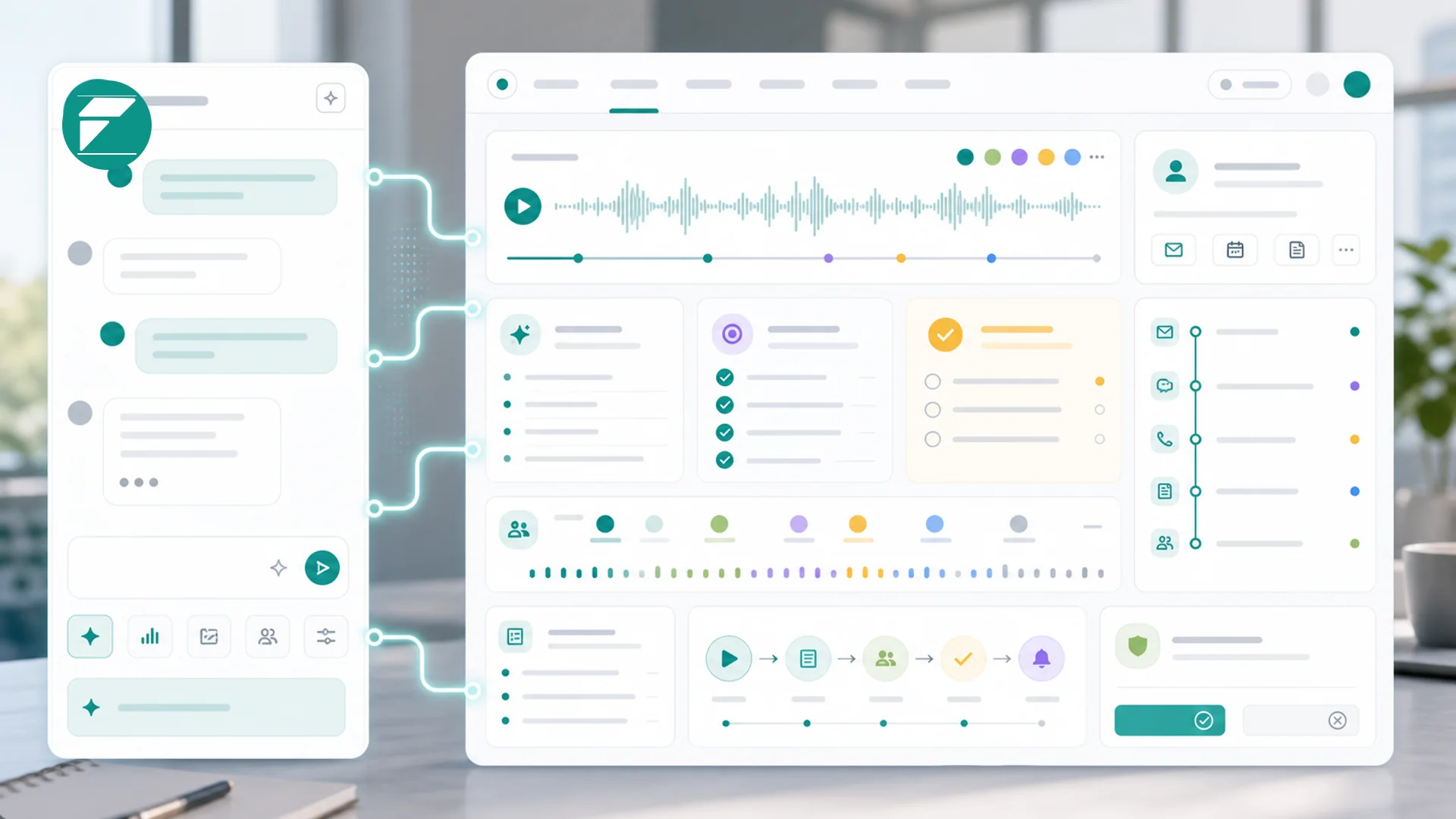
Product media placeholder
Replace this area with a screenshot or short walkthrough video during the media sweep.
Use an event campaign page when a booking event needs more than the standard event detail page. A campaign page gives the event a focused hero, launch copy, content sections, styling, and the right registration behavior for free, paid, service-based, or external events.
What this guide helps you do
- Create a campaign-style page for a workshop, class, venue event, or group session.
- Use event details, capacity, payment rules, and registration settings without rebuilding the booking flow.
- Preview the page before customers use it and connect the registrations to follow-up.
Before you start
- Create the booking event first, including title, date, time, timezone, location, capacity, price, and registration rules.
- Write the event promise, target audience, agenda or sections, and call to action.
- Decide whether registration is free and inline, paid through checkout, service-based with add-ons, or handled by an external booking URL.
Do it manually
- Open Bookings, then open the event you want to promote. If you have not created it yet, start with Create booking events and workshops.
- Open the Marketing Page section for the event.
- Turn on the campaign layout or add campaign configuration for the event. In advanced/plugin configuration this is stored as
marketing_config. - Add hero copy, registration labels, section content, and theme accents.
- Save the event, then open the public event URL in preview or an incognito window.
- Test the registration path: free inline registration, paid checkout, service add-ons, or external registration.
- Confirm the registration creates or updates the customer People record and adds the right booking People lists for follow-up.
Campaign configuration example
Use marketing_config to define the campaign page around the existing booking event. Keep the copy customer-facing and avoid private notes, internal names, or unapproved offers.
{
  "enabled": true,
  "layout": "campaign",
  "hero": {
    "eyebrow": "Workshop",
    "headline": "Spring floral design night",
    "subheadline": "A hands-on evening with materials, instruction, and a take-home arrangement."
  },
  "registration": {
    "mode": "inline",
    "cta_label": "Reserve a spot",
    "paid_cta_label": "Continue to checkout",
    "quantity_label": "Seats"
  },
  "sections": [
    {
      "title": "What attendees get",
      "items": ["All materials included", "Beginner-friendly instruction", "Take-home arrangement"]
    }
  ],
  "theme": {
    "accent": "#3f9b92",
    "background": "#f7fbfa"
  }
}
Registration behavior
- Free event registrations can use the inline registration form on the campaign page.
- Paid event registrations continue to checkout before the seat is confirmed.
- Service-based events can send customers through the service or add-ons path when that is the right booking flow.
- External events should use the approved external booking URL and make the handoff clear.
Ask Faster AI
Try this prompt:
Create campaign-page copy for this event. Use the event title, date, audience, capacity, price, and registration deadline. Keep the output as hero copy, three content sections, and CTA labels. Do not change the event settings until I approve them.
Review before customers use it
- Check the public URL, mobile layout, title, date, time, timezone, location, capacity, price, and CTA labels.
- Run one test registration for each active path: free, paid, service-based, or external.
- Confirm follow-up can use booking People lists. If needed, create an audience from the relevant list with Create an audience from a People list.
- Confirm campaign links, broadcasts, social posts, and partner messages all point to the same event page.
Common issues and fixes
- If the standard event detail page appears, confirm the campaign layout is enabled in the event marketing configuration.
- If the CTA sends customers to the wrong place, review the event price, payment setup, service-based settings, and external URL.
- If the page feels too long, keep the hero, one proof section, one logistics section, and the registration panel.
- If registrations are missing from follow-up lists, review the booking plugin sync and the customer People record.
Event marketing timeline
For when to announce, promote, remind, and follow up after the event page is ready, read The Event Marketing Checklist: Fill Seats Without Paid Ads.
Venue booking playbook
For a venue-specific example of turning dark nights into capacity events with their own registration pages, read The Venue Owner's Booking and Events Playbook.
Connected workflows
- Create booking events and workshops
- Send booking follow-up
- Create an audience from a People list
- Create campaign tracking links
Placeholder media
- Screenshot placeholder: add a campaign event page preview with private customer data, unpublished pricing tests, and internal notes removed.
- Video placeholder: add a short walkthrough from event setup to campaign page preview, test registration, and booking People list follow-up.